
Configure Tencent WorkBuddy
Updated: 2026-08-20
This page provides a screenshot-based walkthrough for connecting Tencent WorkBuddy to the Cubicspaces OpenAI-compatible API.
Before you begin, obtain the following from the Cubicspaces console:
- An API Key
- A model ID available to your account, such as
gpt-5.6-sol
WorkBuddy uses the OpenAI Chat Completions protocol. Do not configure the endpoint as
/v1/responses.
The UI screenshots on this page are from the official Tencent Cloud WorkBuddy documentation. Colors and layout may differ slightly between versions, but the fields are equivalent. No Cubicspaces API Key appears in the screenshots.
Supported Model IDs
Replace the example model with a model available to your account. If the console shows only some of these models for your account, use the model IDs actually available there.
GPT
For WorkBuddy, prefer these GPT model IDs that support tool calling:
gpt-5.6-solgpt-5.6-lunagpt-5.6-terragpt-5.5gpt-5.4gpt-5.4-mini
These models use the same Provider, Endpoint, API Key, and Custom Protocol settings; only the model ID changes. gpt-5.6-sol is the recommended default.
Other GPT models compatible with the OpenAI Chat Completions protocol use the same configuration. Replace only the model ID with a name available in the Cubicspaces console.
Claude
Claude models also connect to WorkBuddy through the OpenAI Chat Completions protocol:
claude-sonnet-5claude-sonnet-4-6claude-opus-5claude-opus-4-8claude-opus-4-7claude-opus-4-6claude-haiku-4-5claude-fable-5
These Claude models use the same setup; only the model ID changes. WorkBuddy automatically sends the conversation as the messages field in the request body, so you do not need to add messages manually.
Configure image input, reasoning mode, tool calling, and token limits according to the capabilities of the selected model. A model without tool-calling support cannot provide the full WorkBuddy coding-agent experience.
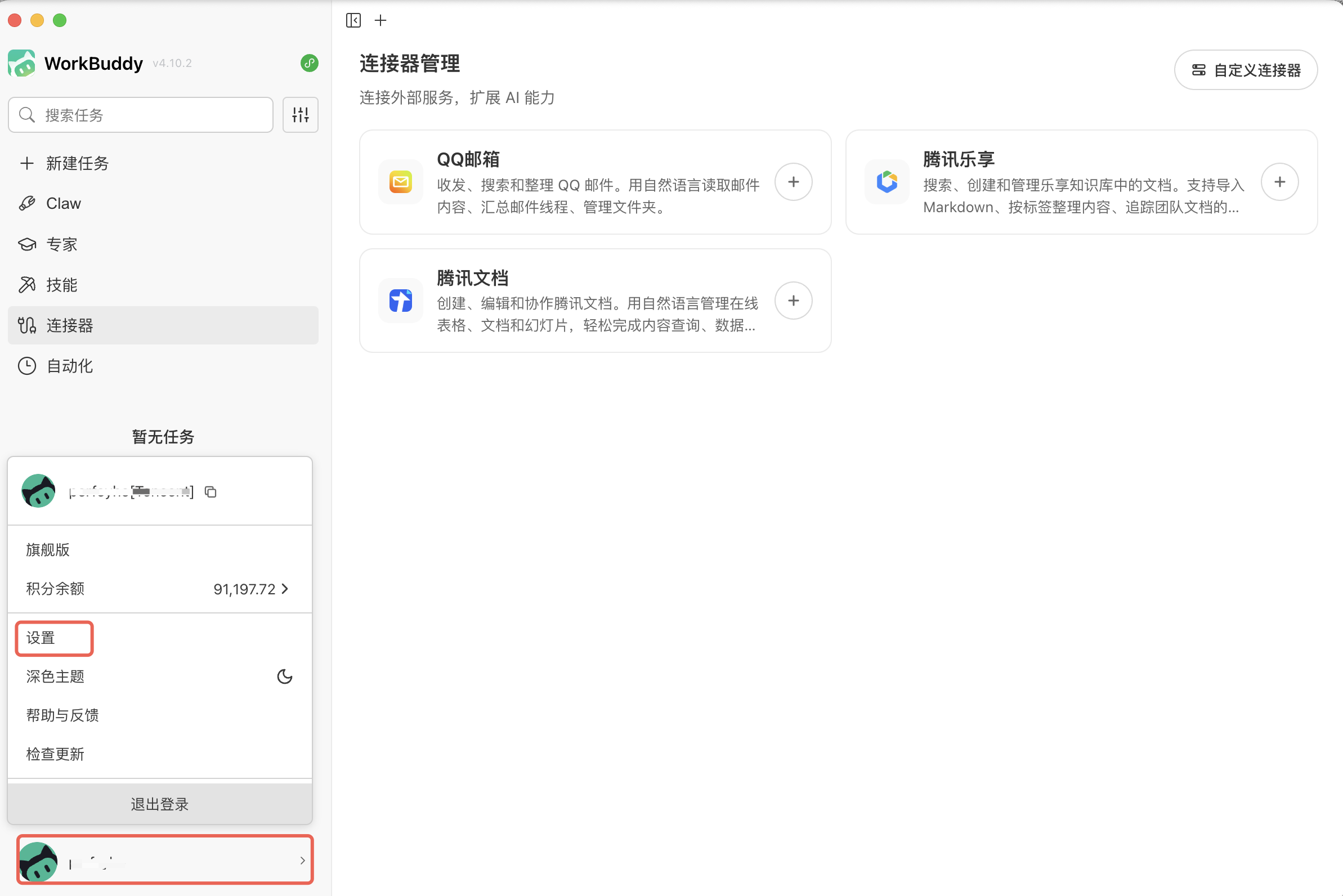
Step 1: Open WorkBuddy Settings
- Start WorkBuddy.
- Select the account or avatar in the lower-left corner.
- Select Settings.
Step 2: Open Model Configuration
- Select Model in the settings sidebar.
- Under Custom Models, select Add Model.
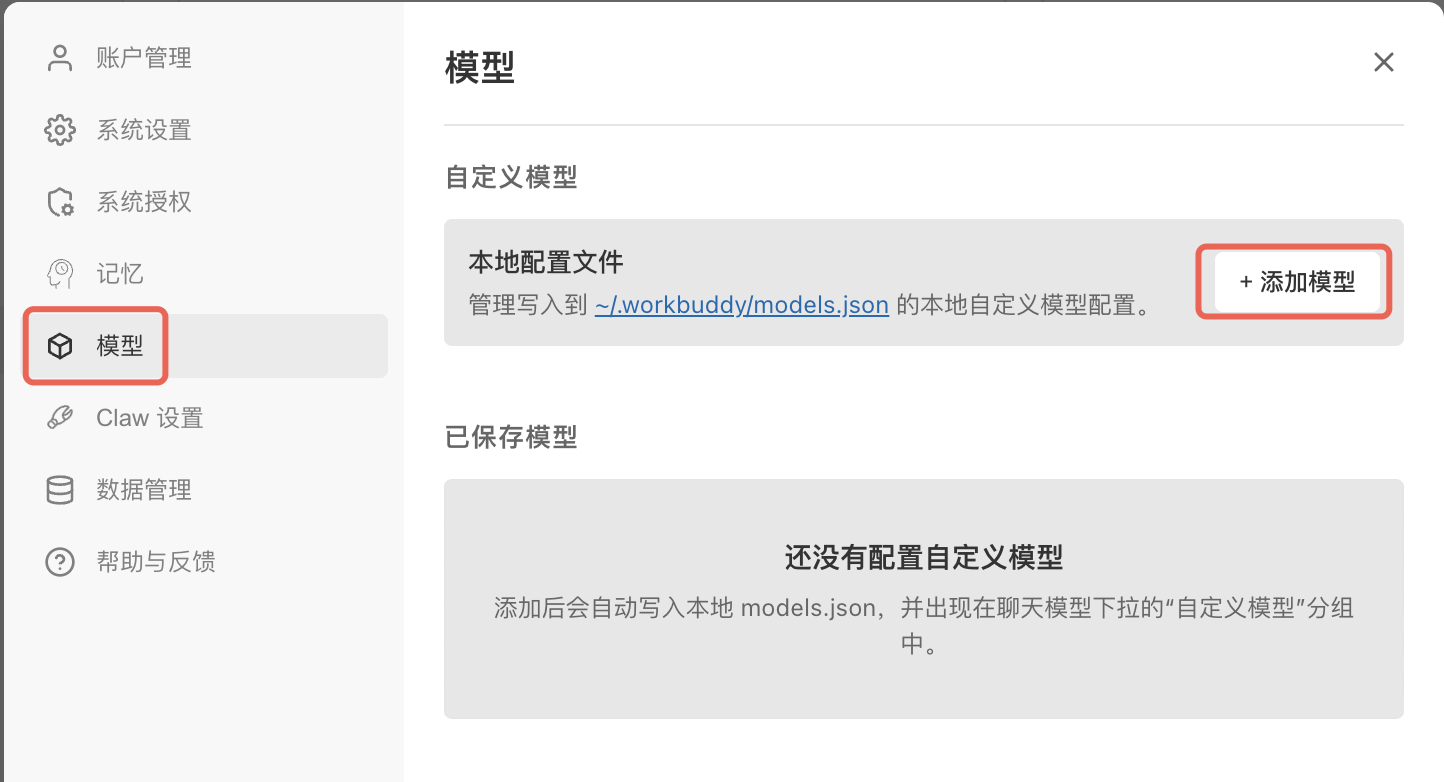
Current WorkBuddy versions manage the local configuration through the UI. You do not need to edit JSON first.
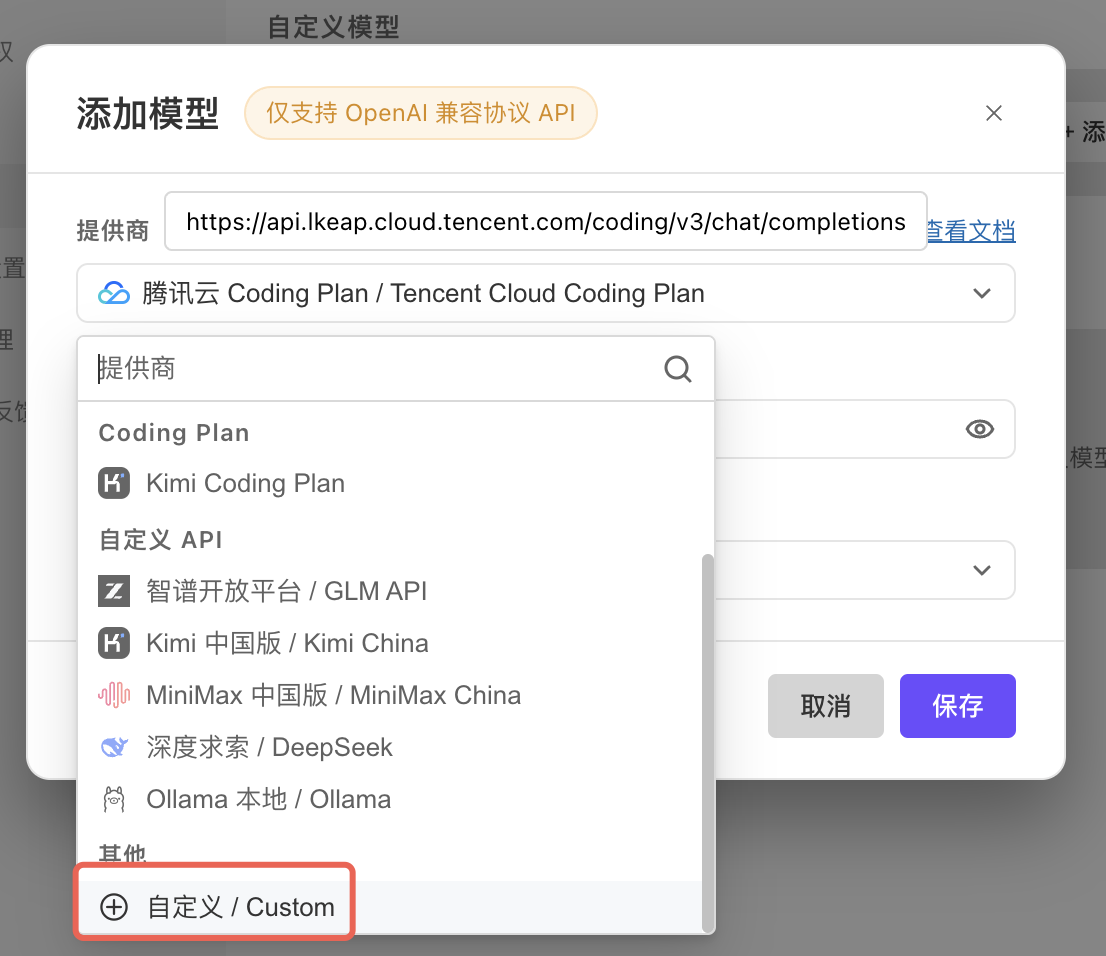
Step 3: Select the Custom Provider
Open the provider list and select Custom at the bottom.
Step 4: Enter the Cubicspaces Settings
Enter the following values:
| Setting | Value |
|---|---|
| Provider | Custom |
| Endpoint | https://cubicspaces.cloud/v1 |
| API Key | The API Key created in the Cubicspaces console |
| Model | gpt-5.6-sol, or another model ID shown in the console |
| Tool calling | Enabled |
| Image input | Enable when needed; GPT-5.6 supports it |
| Reasoning mode | Enabled |
| Custom Protocol | Disabled |
| Input limit | 128K |
| Output limit | 16K |
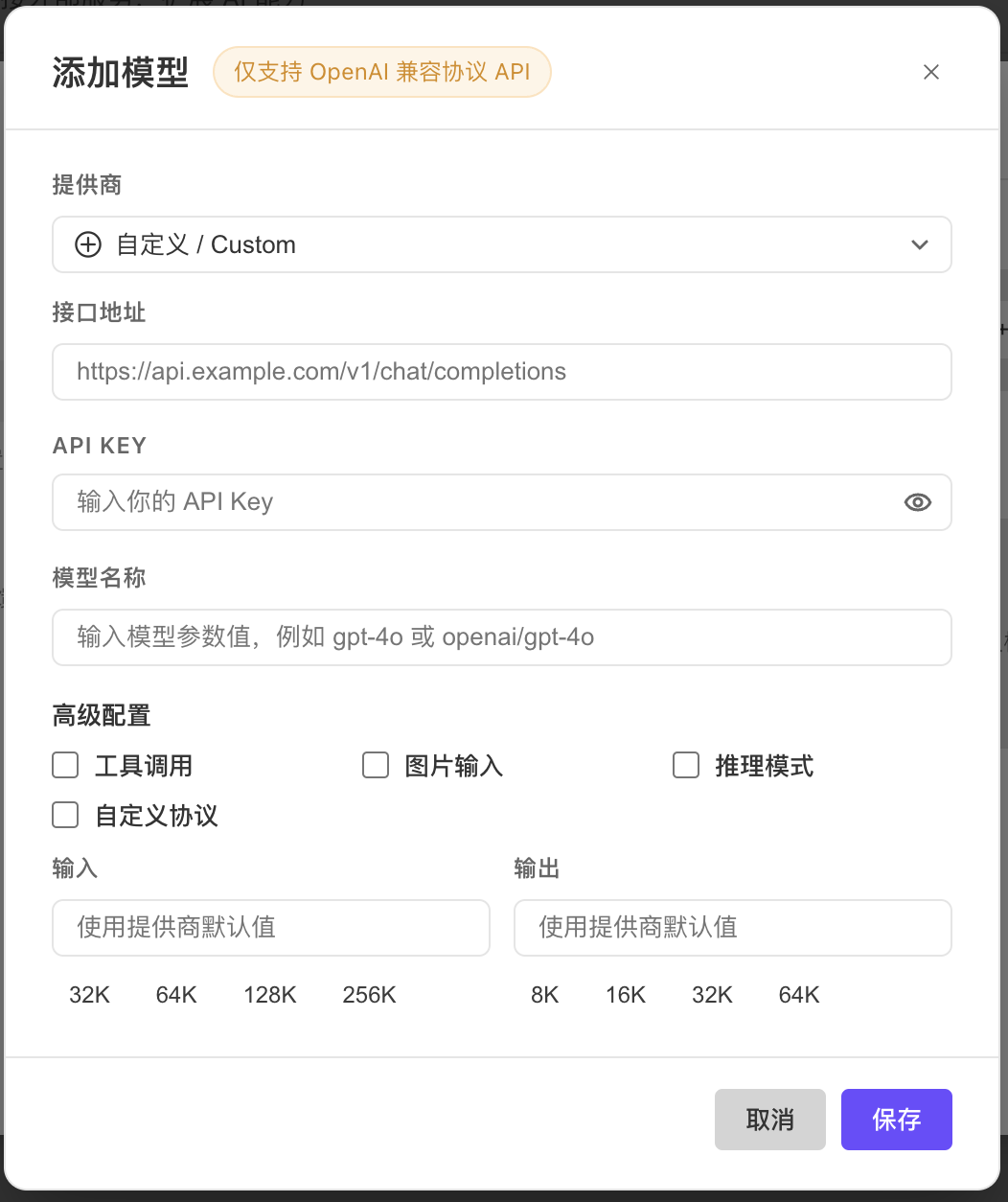
In standard mode, keep Custom Protocol disabled. WorkBuddy appends /chat/completions to https://cubicspaces.cloud/v1.
If an exact endpoint is required:
- Enter
https://cubicspaces.cloud/v1/chat/completionsas the endpoint. - Enable Custom Protocol.
Use one mode or the other. Do not create a duplicated path such as:
/v1/chat/completions/chat/completionsStep 5: Save and Select the Model
- Confirm that the API Key contains no extra spaces or quotation marks.
- Select Save.
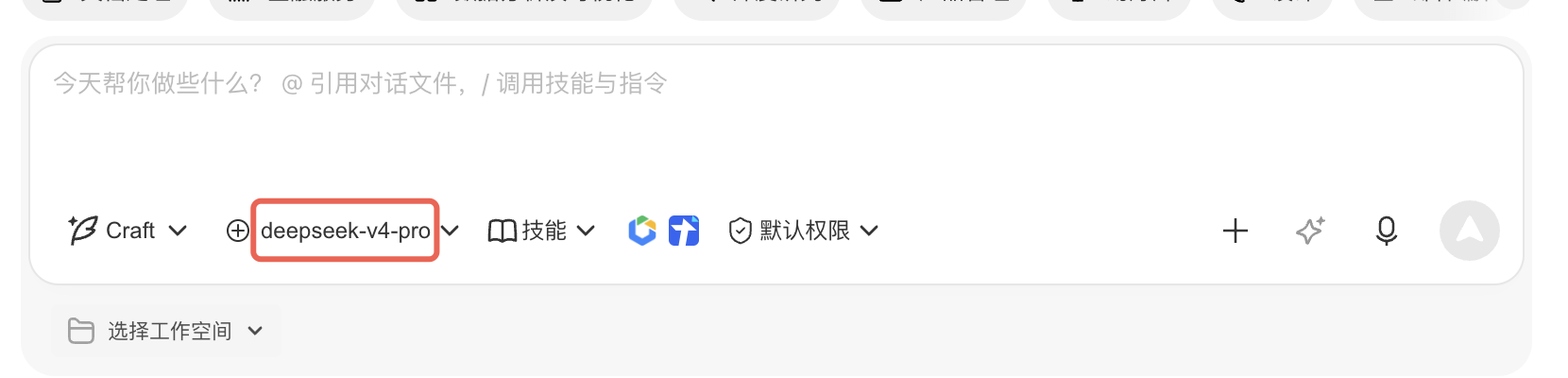
- Return to the chat page and select the model name below the input box.
- Select
gpt-5.6-solfrom the Custom Models group.
Step 6: Verify Tool Calling
With a workspace open, send:
List the files in the current workspace and summarize the project structure.If WorkBuddy can inspect the workspace and return a result, the model and tool calling are connected.
WorkBuddy should continue to use /v1/chat/completions. When GPT-5.5 or GPT-5.6 is used with tool calling and reasoning, Cubicspaces handles protocol compatibility on the server; you do not need to change WorkBuddy to /v1/responses.
Fallback: models.json
The UI is the recommended setup method; editing JSON is not required. WorkBuddy 5.3.13 stores its user-level configuration at:
~/.workbuddy/models.jsonWindows path:
%USERPROFILE%\.workbuddy\models.jsonSingle-model example for WorkBuddy 5.3.13:
{
  "id": "gpt-5.6-sol",
  "name": "gpt-5.6-sol",
  "vendor": "Custom",
  "url": "https://cubicspaces.cloud/v1",
  "apiKey": "YOUR_API_KEY",
  "maxInputTokens": 128000,
  "maxOutputTokens": 16384,
  "supportsToolCall": true,
  "supportsImages": true,
  "supportsReasoning": true,
  "useCustomProtocol": false
}
Older CodeBuddy or pre-migration WorkBuddy versions may use ~/.codebuddy/models.json, and current versions may continue to read legacy settings. JSON structures can differ between versions, so prefer Settings → Model and do not maintain both directories at the same time.
Claude Model Setup
Claude models are also added as Custom Models in WorkBuddy. Use the same Provider, Endpoint, API Key, and Custom Protocol settings as the GPT models. Set the model name to a model ID from the Claude list above, such as claude-sonnet-5.
| Setting | Value |
|---|---|
| Provider | Custom |
| Endpoint | https://cubicspaces.cloud/v1 |
| API Key | The API Key created in the Cubicspaces console |
| Model | For example, claude-sonnet-5, or another supported Claude model ID below |
| Tool calling | Enabled |
| Image input | Enable when needed; follow the selected model's capabilities |
| Reasoning mode | If the model reports an unsupported parameter, disable it and retry |
| Custom Protocol | Disabled |
WorkBuddy still connects to Claude models through the OpenAI Chat Completions protocol. Do not change the endpoint to Claude's native /v1/messages.
WorkBuddy automatically sends the conversation as the messages field in the Chat Completions request body. You do not need to add a messages field manually in the WorkBuddy model settings or models.json.
Troubleshooting
HTTP 404 or a duplicated path
In standard mode, use https://cubicspaces.cloud/v1 and disable Custom Protocol. When using the complete /v1/chat/completions endpoint, enable Custom Protocol.
HTTP 401
Confirm that the API Key is complete, active, and contains no extra spaces or quotation marks.
The model is not listed
The model ID must exactly match the name shown in the Cubicspaces console. Fully quit WorkBuddy, including its tray process, and reopen it.
Tool calling reports that reasoning_effort is unsupported
- Confirm that the endpoint is not configured as
/v1/responses. - Confirm that you are using a Cubicspaces environment where compatibility handling is deployed.
- Retain the request ID from the error and contact support.